Table of Contents
What is different between Workbook and Worksheet ?
| Workbook | Worksheet |
| A Workbook is an Excel file that contains one or more worksheets, where we create or store for calculate, analyze, and present data etc. | A Worksheet is a single working like page or area inside an Excel Workbook reflect rows and columns where we enter any text for record, number, for calculate, and analyze data. |
What is Grid in Excel?
The Grid System in Excel is the structure of rows and columns that creates cells, allowing users to enter, organize, calculate, and analyze data efficiently.
Cells Grid = Rows + Columns + Cells (Excel Working Area)
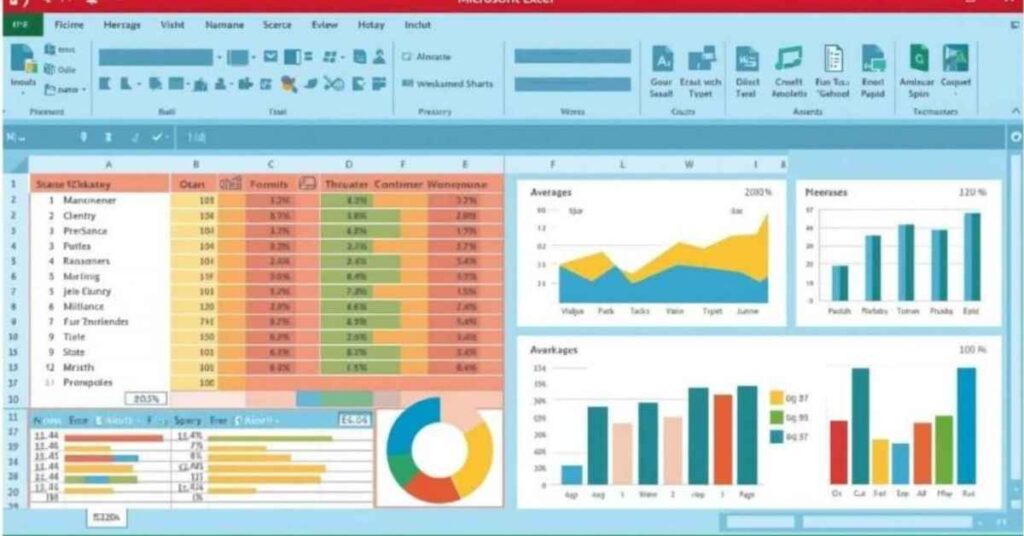
When you open an Excel, You see thousands of small rectangular boxes. This structure is called the Cells Grid.
Important Terms Related to Grid System
| Term | Meaning |
| Row | Horizontal collection of cells |
| Column | Vertical collection of cells |
| Cell | Single box where data is entered |
| Cell Address | Location of a cell (A1, B5) |
| Range | Group of multiple cells (A1:C10) |
Relative vs. Absolute Cell Referencing
Master essential navigation, understanding cell references, and writing your first calculations with core functions. When you open Excel, you see a grid of boxes. Here is what those parts are called:
In Excel, four types of cell references are used to create dynamic and accurate formulas. Understanding the difference between relative (A1), absolute ($A$1), ($A1) & (A$1) cell references is the single most important concept when copying formulas across rows or columns.

1. Relative Reference (A1)
This will changes automatically when you drag or copy the formula to another cells. (Both the row and column will change when the formula is copied)
2. Absolute Reference ($A$1)
Locks the row and column cells using dollar signs (press F4) so it never moves cells when you copied the data. (Neither column nor row changes.)
3. Mixed Reference (Absolute Column) ($A1)
In this condition column is fixed, but the row will changes when copied automatically or when you drag or copy the formula to another cells.

4. Mixed Reference (Absolute Row) (A$1)
In this condition row is fixed, but the column will changes when copied automatically or when you drag or copy the formula to another cells.
Summary Table
| Reference | Column | Row | Example |
| Relative | Changes | Changes | A1 |
| Absolute | Fixed | Fixed | $A$1 |
| Mixed (Absolute Column) | Fixed | Changes | $A1 |
| Mixed (Absolute Row) | Changes | Fixed | A$1 |
Top Productivity Tools
| Tools Name | Shortcut Key | Discerption |
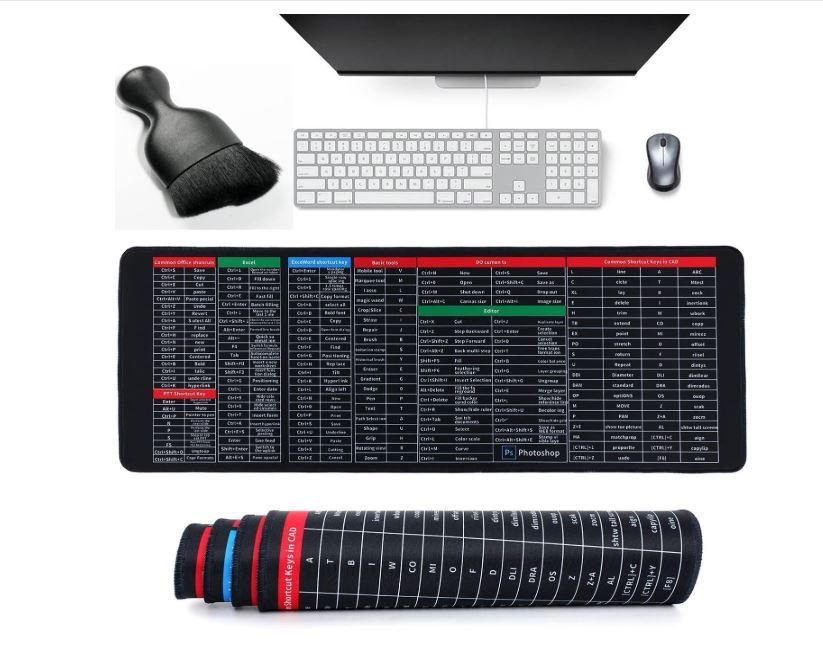
| For cell edit | F2 | If you typed error text in any cells so, easy to cell edit for correct text, press F2. |
| Tables | Ctrl + T | Change data simple ranges into dynamic formatted tables with built-in auto-expansion for new rows and automatic total bars. |
| Sort & Filter | Ctrl + Shift + L | Excel automatically adds drop-down arrows to table headers, making it easy to sort data alphabetically or numerically and filter records to display only the information you need. |
| Pivot Tables | Ctrl + N + V + T | The ultimate tool to summarize big/large datasets in seconds without any writing a single formula. Go to Insert > Pivot Table to drag-and-drop fields for instant aggregated reports & calculation. |
| Formatting | Alt + H + L | Cell formatting is the process of changing the data in Excel to make it easier to read, understand, and present professionally. |
| Formulas | An Excel formula is an instruction used to perform calculations or process data automatically in Excel as required or need. |
Essential Mathematical Functions
Basic Aggregations
SUM, AVERAGE, COUNT, COUNTA, MAX, MIN etc.
Logical Functions
IF, TRUE, FALSE, AND, OR, IFERROR, =, <>, >,<
Conditional Aggregations
SUMIF, COUNTIF, SUMIFS, COUNTIFS etc.
Lookup & Reference Functions
VLOOKUP, INDEX, MATCH, XLOOKUP etc.
Text Handling Functions
LEFT, RIGHT, MID, TRIM, TEXTJOIN etc.